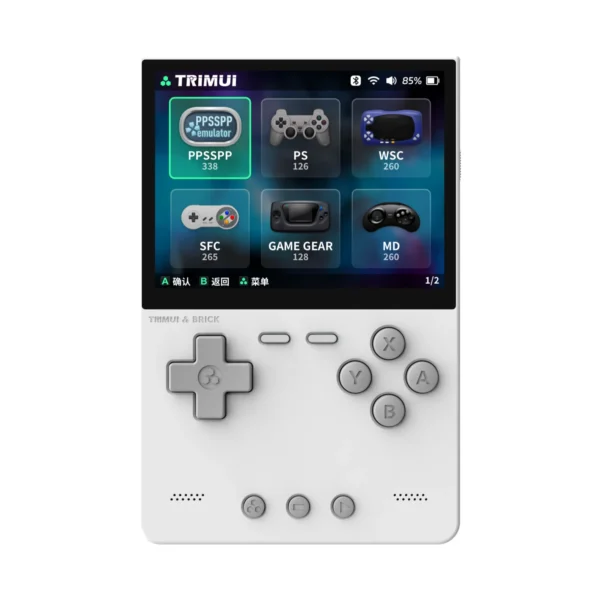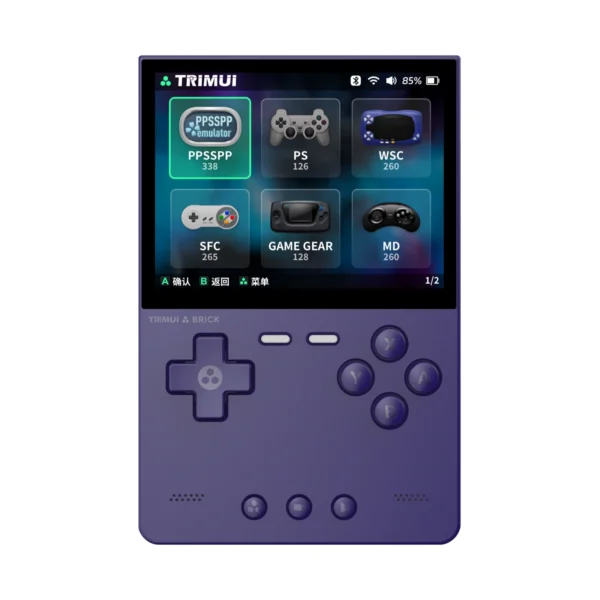
Setting up the TRIMUI Baksteen properly from the beginning will save you time, reduce confusion, and give you a much smoother retro gaming experience. Many first-time users make the same mistake: they power on the device, copy a huge game library all at once, change too many settings, and only later realize that their folders are messy, their saves are hard to manage, or basic issues are difficult to diagnose.
This trimui brick setup guide is written specifically for new TRIMUI Brick users. It focuses on the practical first steps that matter most: preparing your microSD card, checking the device during first boot, organizing games cleanly, reviewing the settings that affect everyday use, and avoiding the setup mistakes that create problems later.
The goal is simple: help you build a clean, stable, and easy-to-maintain TRIMUI Brick setup from day one.
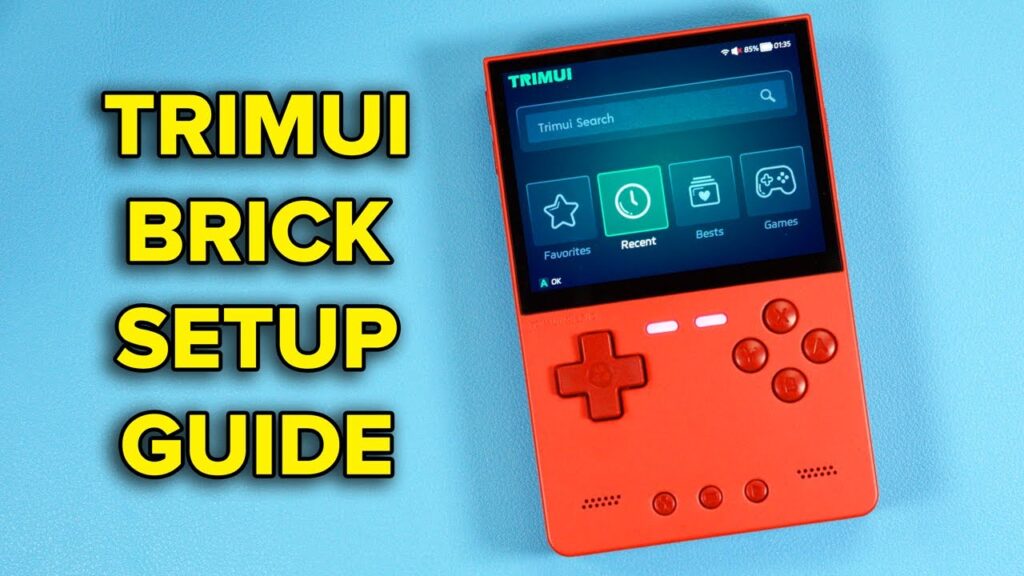
Why the TRIMUI Brick Setup Should Be Kept Simple
De TRIMUI Baksteen is best suited to users who value portability, quick access, and an everyday handheld that is easy to pick up and enjoy. That means the ideal setup is not the largest or most complicated one. The ideal setup is the one that stays fast, clear, and manageable.
This guide is written specifically for the TRIMUI Brick. While some general setup ideas may also apply to other TRIMUI handhelds, the steps, recommendations, and troubleshooting points below are intended for new TRIMUI Brick users who want a clean first-time setup.
For most beginners, the best approach is to keep the first setup simple: start with a clean microSD card, use the default system or the firmware version that came with your device, test a small game library first, and only then move on to deeper customization.
First, it should make your game library easy to browse.
Second, it should make your saves and files easy to manage.
Third, it should let you troubleshoot problems quickly if anything does not load or behave as expected.
Because the Brick is a compact handheld, it benefits most from a lightweight, organized setup rather than an oversized, chaotic library.
What You Need Before Setting Up the TRIMUI Brick
Before starting the first setup, prepare the basics.
You should have:
- Your TRIMUI Baksteen
- A reliable USB-C charging cable
- A microSD card
- A computer for transferring and organizing files
- A card reader if your computer does not have one built in
- A small test batch of games for initial verification
If you purchased a version without a preloaded card, your first storage setup becomes especially important. If your unit came with a card, it is still a good idea to inspect the existing structure before adding more files.
Do not start by copying hundreds of files. Start by building a setup that is easy to verify.
Choosing a microSD Card for the TRIMUI Brick
A lot of beginners underestimate how important storage quality is. On a handheld like the TRIMUI Brick, a good microSD card is not just about capacity. It affects reliability, file organization, and long-term ease of use.
When choosing a card, prioritize:
- A trusted brand
- Stable performance
- Real, usable capacity
- Long-term reliability
- Enough space for the type of library you actually want to use
For most new users, it is smarter to start with a reliable, moderate-capacity card and a curated game library than to jump straight into a huge, unorganized collection.
Your storage should match your real use case. If you mainly want a clean portable setup for daily play, a focused library is often better than a giant archive.
Step-by-Step microSD Card Preparation for TRIMUI Brick
A clean microSD card setup is one of the most important parts of a stable TRIMUI Brick experience. Instead of copying a large game collection immediately, prepare the card in small, controlled steps.
Follow this workflow:
- Insert the microSD card into your computer.
- Back up any important files already stored on the card.
- Format the card if you are starting from scratch.
- Create a clean folder structure for your game library.
- Add only a small test batch of files first.
- Safely eject the card from your computer.
- Insert the card into the TRIMUI Brick and verify that it is detected correctly.
Where to Put ROMs and BIOS Files on TRIMUI Brick
Once the microSD card is prepared, the next step is organizing your files in a way that stays easy to manage over time.
For best results, keep your ROMs grouped by system instead of mixing everything together. Each platform should have its own clearly named folder so that your library remains easy to browse on both the computer and the handheld.
BIOS files, if needed for specific systems, should also be kept organized and separated from ROM files. Do not scatter them randomly across the card. A clean structure makes it much easier to identify missing files, loading problems, or systems that are not configured correctly.
A good beginner rule is simple:
– Keep one folder per platform
– Keep ROM names clean and readable
– Keep BIOS-related files separate from your game folders
– Avoid duplicate folders for the same system
– Test a small number of games before expanding the library
This approach makes the TRIMUI Brick much easier to maintain, especially for first-time users.
The goal of this first setup is not to build the biggest library possible. The goal is to create a reliable base that is easy to test, easy to expand, and easy to troubleshoot later.
The main rule here is consistency. A well-organized card is much easier to manage later, especially when you start adding more games, saves, screenshots, or related files.
Avoid random folder naming, duplicate folders for the same system, or dropping mixed files everywhere. The Brick is easiest to use when your storage layout is simple and predictable.
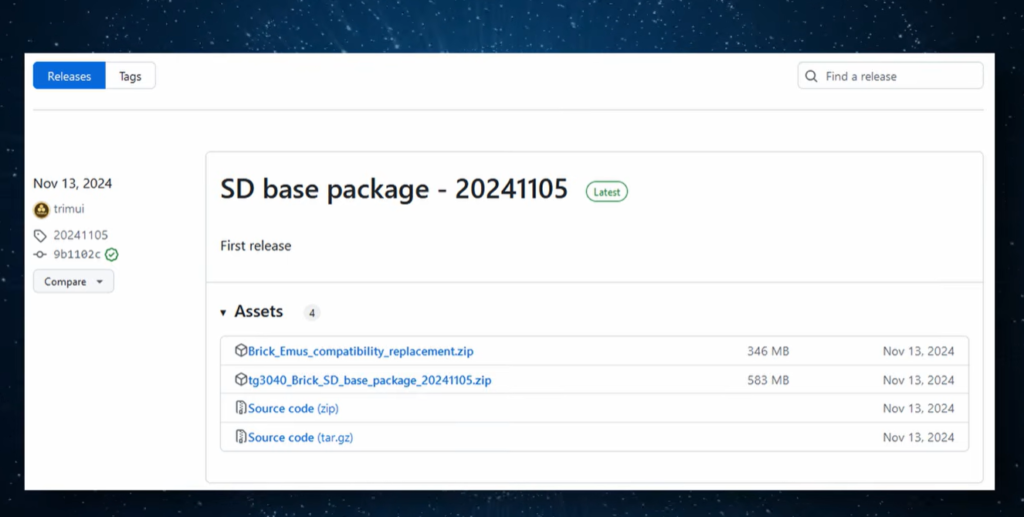
Recommended Folder Strategy for New TRIMUI Brick Users
The best setup for a new TRIMUI Brick owner is a system-based folder structure.
That means:
- Keep one clear folder per platform
- Use clean, readable names
- Avoid duplicate folders with slightly different names
- Separate test content from your long-term library
- Add files in controlled batches
A small handheld becomes much more enjoyable when its library is organized. You do not want to scroll through a confusing file mess on a compact device. The Brick works best when the content is cleanly structured and easy to navigate.
First Charge and Physical Check Before Powering On
Before you start a real setup session, make sure the device is properly charged. A stable first session is better than running out of power in the middle of checking storage or settings.
Before powering on, do a quick physical check:
- Confirm the screen looks clean and normal
- Check that the buttons feel responsive
- Inspect the card slot area
- Make sure the charging connection feels stable
These simple checks help you start from a known good baseline.
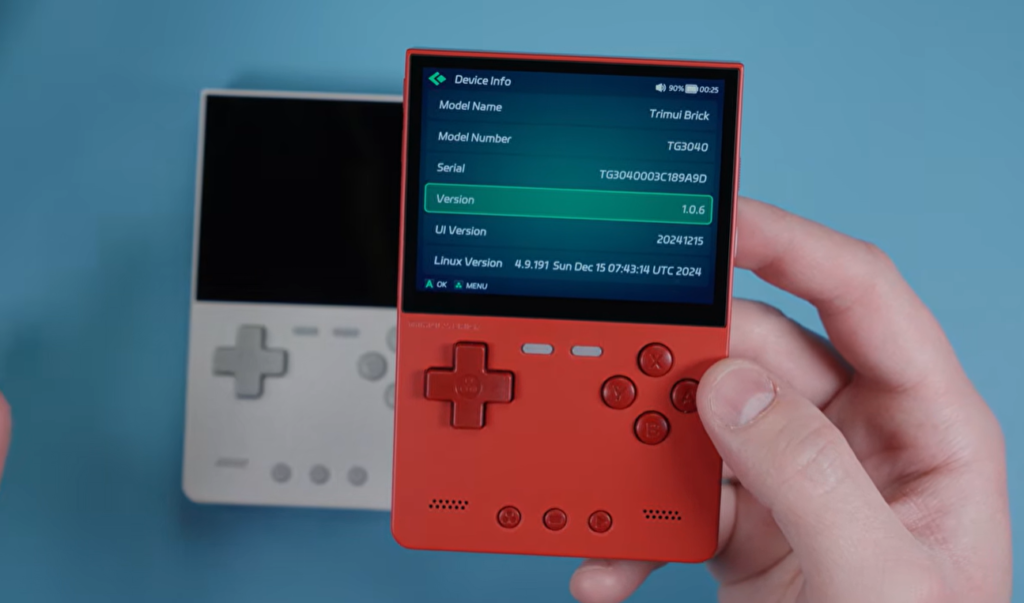
TRIMUI Brick First Boot Checklist
When you boot the TRIMUI Brick for the first time, do not rush into deep customization. Your first goal is simply to confirm that the core functions work correctly.
Check the following:
- The device powers on normally
- The user interface loads correctly
- The screen brightness looks normal
- Buttons respond in the menu
- Audio works
- Battery status appears normal
- The microSD card is detected
- Basic navigation feels smooth
Which Firmware Option Is Best for New TRIMUI Brick Users?
For most new users, the best starting point is the setup that feels the most stable and easiest to understand. If your TRIMUI Brick already includes a working default system, begin there first before experimenting with alternative firmware options.
A beginner-friendly setup usually follows this order:
– Start with the default or currently installed system
– Confirm that the device boots normally
– Verify that the microSD card is recognized
– Test a small game library
– Confirm that basic save behavior works
– Explore alternative setups only after the core system is stable
This matters because many first-time users try to customize the device too early. A simple and verified setup will always be easier to troubleshoot than a heavily modified setup built on an unstable base.
This first boot stage is where you confirm the handheld is ready for a fuller setup. If something basic is wrong, it is much easier to identify it now than after adding a large library.
What to Check Carefully During First Boot
Screen brightness and visibility
The first thing to confirm is that the display looks clear and usable. A brightness level that is too low may make the screen seem weak when the real issue is only a default setting. A brightness level that is too high can waste battery unnecessarily.
Menu responsiveness
The Brick is meant to feel simple and quick. If menu navigation already feels inconsistent during a clean setup, check the storage card and keep your test library small until you verify the basics.
Audio output
Test menu sounds or game audio if available. Confirm the system is not muted and that volume adjustments work normally.
Button input
On a compact handheld like the Brick, comfortable and reliable controls are a major part of daily use. Test directional and face-button response in the interface before spending time on library expansion.
Storage recognition
This is one of the most important checks. Confirm that the TRIMUI Brick is reading your microSD card correctly before you add a large number of files.
Why a Small Test Library Is Better Than a Full Library on Day One
One of the biggest beginner mistakes is copying a massive collection immediately and assuming that if anything goes wrong, it will be easy to find the cause later. In reality, that makes troubleshooting much harder.
A better method is to use a small test library first.
Start with:
- A few games from one or two systems
- Cleanly named files
- No duplicates
- No mixed archive dumps
- Only the content you need for basic verification
The purpose of this first library is not to impress anyone. It is to confirm that the Brick can read the card, display the systems correctly, load content as expected, and behave normally before you scale up.
How to Add Games to the TRIMUI Brick Cleanly
After adding new games to the microSD card, check whether the system updates the library automatically. If your newly added content does not appear right away, review your folder structure first and make sure the files are placed consistently.
When troubleshooting a missing game library entry, check the following:
– The files were copied completely
– The ROMs are inside the intended platform folder
– Folder names are clean and consistent
– The card is recognized correctly by the device
– You tested with a small batch instead of a huge library dump
If a few test files appear correctly but a large batch does not, the issue is often related to file organization rather than the handheld itself.
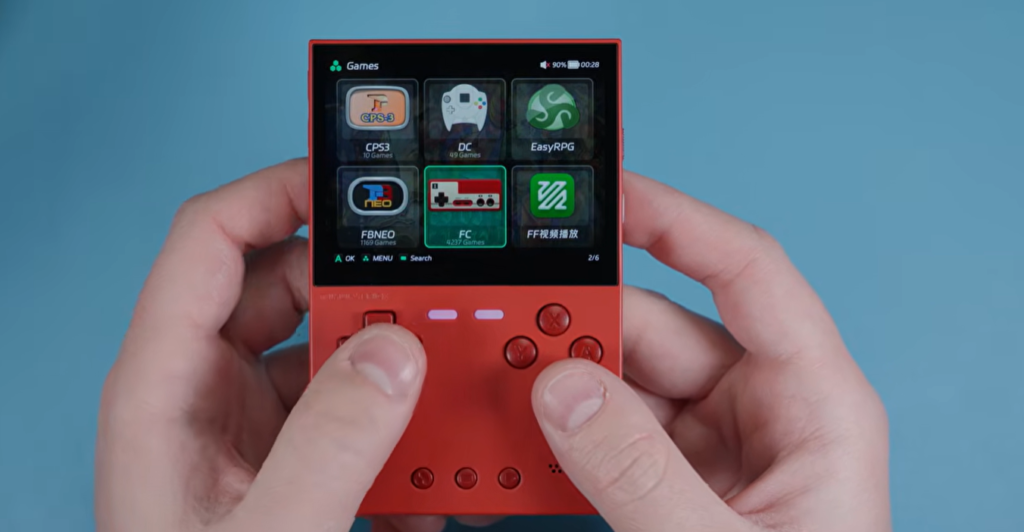
Best Settings to Check on the TRIMUI Brick First
After confirming that the device and card are working correctly, review the settings that matter most for daily use.
Brightness
Adjust the brightness to a practical level for real indoor use. Maximum brightness is not always necessary and usually reduces battery efficiency.
Volume
Set a comfortable default volume. Confirm the system is not muted and that volume changes respond properly.
Sleep or power behavior
If your setup allows power-related behavior adjustments, review them early. Portable devices are much easier to live with when sleep and wake behavior feel predictable.
Save behavior
A setup is not complete until you confirm that your games and save workflow behave as expected. Never assume save handling is fine without checking it yourself.
Display preferences
If there are display-related options available, avoid changing too many at once. Make one adjustment, test it, and keep the setup stable.
Menu customization
Themes and interface changes should come later. The best first setup is a stable one, not the most customized one.
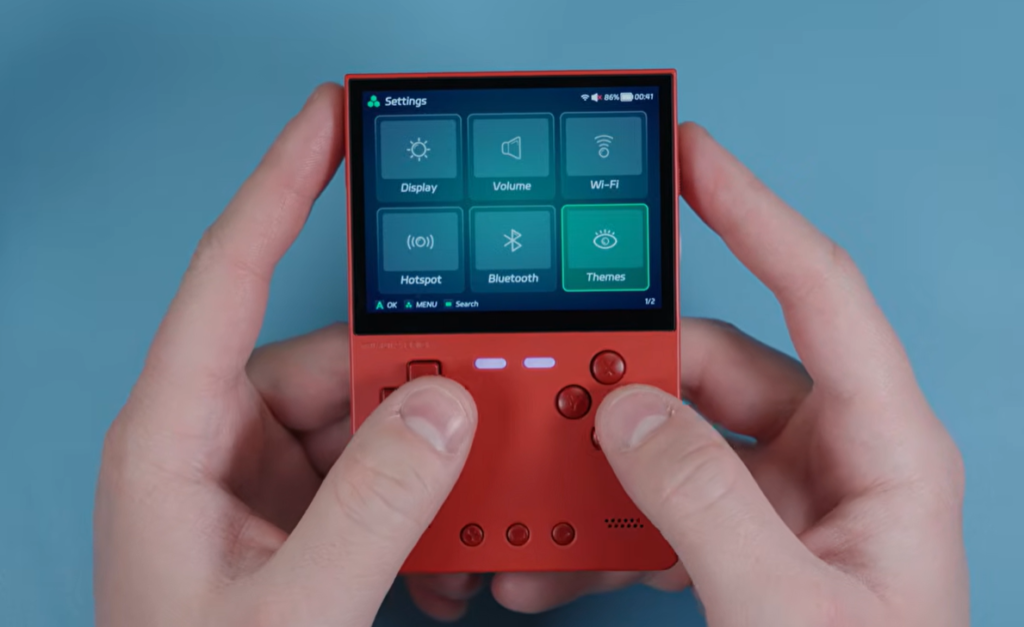
The Best Setup Philosophy for TRIMUI Brick Users
The TRIMUI Brick is not a handheld that benefits from chaos. It benefits from clarity.
A good Brick setup is:
- Compact
- Organized
- Easy to browse
- Easy to test
- Easy to maintain
- Focused on real play rather than file clutter
This is especially important because the Brick is likely to be used as a true grab-and-go device. The more friction there is in finding your games, checking saves, or understanding your storage layout, the less enjoyable the handheld becomes over time.
Common TRIMUI Brick Setup Mistakes
Copying too many files too early
This is the most common mistake. A giant first-day library may look efficient, but it makes it harder to identify storage problems, folder mistakes, or missing content.
Using a low-quality card
If the storage is unreliable, your setup becomes unreliable. Many issues that look like software problems start as storage problems.
Poor folder organization
Messy folder naming creates long-term confusion, especially on a compact device where easy navigation matters more.
Changing too many settings at once
If you change multiple settings at the same time, it becomes difficult to know which change caused a later problem.
Not testing saves early
New users often focus on loading games and forget to confirm that save behavior works properly. That can lead to frustration later.
Treating the Brick like a bulk archive device
The TRIMUI Brick performs best as a clean, portable gaming handheld. It is much more enjoyable when the library is curated and well-organized.
A Practical First-Day Setup Workflow
If you want the cleanest first-day experience with the TRIMUI Brick, use this order:
- Charge the device
- Prepare the microSD card
- Build a clean folder structure
- Insert the card
- Boot the device
- Check screen, audio, controls, and storage detection
- Add a small test library
- Verify loading and save behavior
- Expand your library gradually
- Customize only after the core setup is stable
This sequence is simple, but it prevents most common beginner problems.
TRIMUI Brick First Setup Checklist
Use this checklist before calling your setup finished:
- Charge the TRIMUI Brick before a long setup session
- Insert and verify the microSD card
- Confirm the handheld boots normally
- Check brightness and visibility
- Test audio and button response
- Add only a small library first
- Confirm the library appears correctly
- Test game loading
- Test save behavior
- Expand the library only after everything works
This checklist is especially useful for first-time handheld buyers.
Who This TRIMUI Brick Setup Guide Is For
This guide is most helpful for:
- First-time retro handheld users
- Buyers who chose a TRIMUI Brick without a preloaded card
- Users who want a clean portable setup instead of a huge messy library
- People who value stability and easy file management
- Shoppers comparing compact handheld options before buying
If you are still deciding whether the Brick is the right model, this setup philosophy also tells you something important about the device itself: the TRIMUI Brick is best for users who want a compact, approachable handheld with a practical everyday library, not a chaotic all-in-one storage dump.
Final Thoughts
The best TRIMUI Brick setup is not the one with the most files. It is the one that stays simple, stable, and enjoyable over time.
Start with a reliable microSD card. Keep your folders clean. Verify the basics during first boot. Test with a small library first. Confirm saves and core settings. Then expand carefully.
That approach gives you a TRIMUI Brick that feels quick, organized, and ready for real daily use.
TRIMUI Brick Setup FAQ
What is the best way to start setting up the TRIMUI Brick?
Start with a clean microSD card, a small test library, and a careful first boot check. Do not begin with a huge file dump.
Should I copy all my games to the TRIMUI Brick at once?
No. Add a small number of games first so you can verify that folders, loading, and save behavior are working correctly.
Why is a clean folder structure important on the TRIMUI Brick?
Because the Brick is a compact handheld, simple navigation matters more. A clean structure makes the system easier to browse and manage.
What should I check immediately after first boot?
Check brightness, audio, button response, battery status, and whether the microSD card is recognized correctly.
What is the biggest mistake new TRIMUI Brick users make?
The biggest mistake is trying to build a full library immediately without verifying the setup step by step.
Follow Us On Youtube!
Products by Category
-
TRIMUI BRICK handheld gameconsole met 3,2 inch IPS-scherm, metalen achterpaneel en gratis keycap-cadeaus (rood)
Prijsklasse: $69.00 tot $99.00 -
TRIMUI BRICK handheld gameconsole met 3,2 inch IPS-scherm, metalen achterpaneel en gratis Keycap-gift (wit)
Prijsklasse: $69.00 tot $99.00 -
TRIMUI BRICK Draagbaar Retro Spelconsole met 400PPI IPS-scherm, Linux-systeem, 3000mAh batterij & Mood LED (Zwart)
Prijsklasse: $69.00 tot $99.00 -
TRIMUI BRICK Retro Spelconsole met 400PPI IPS Scherm, Linux OS, 3000mAh Batterij en Gift Keycaps (Paars)
Prijsklasse: $69.00 tot $99.00